Compare Price - User Guide
Introduction
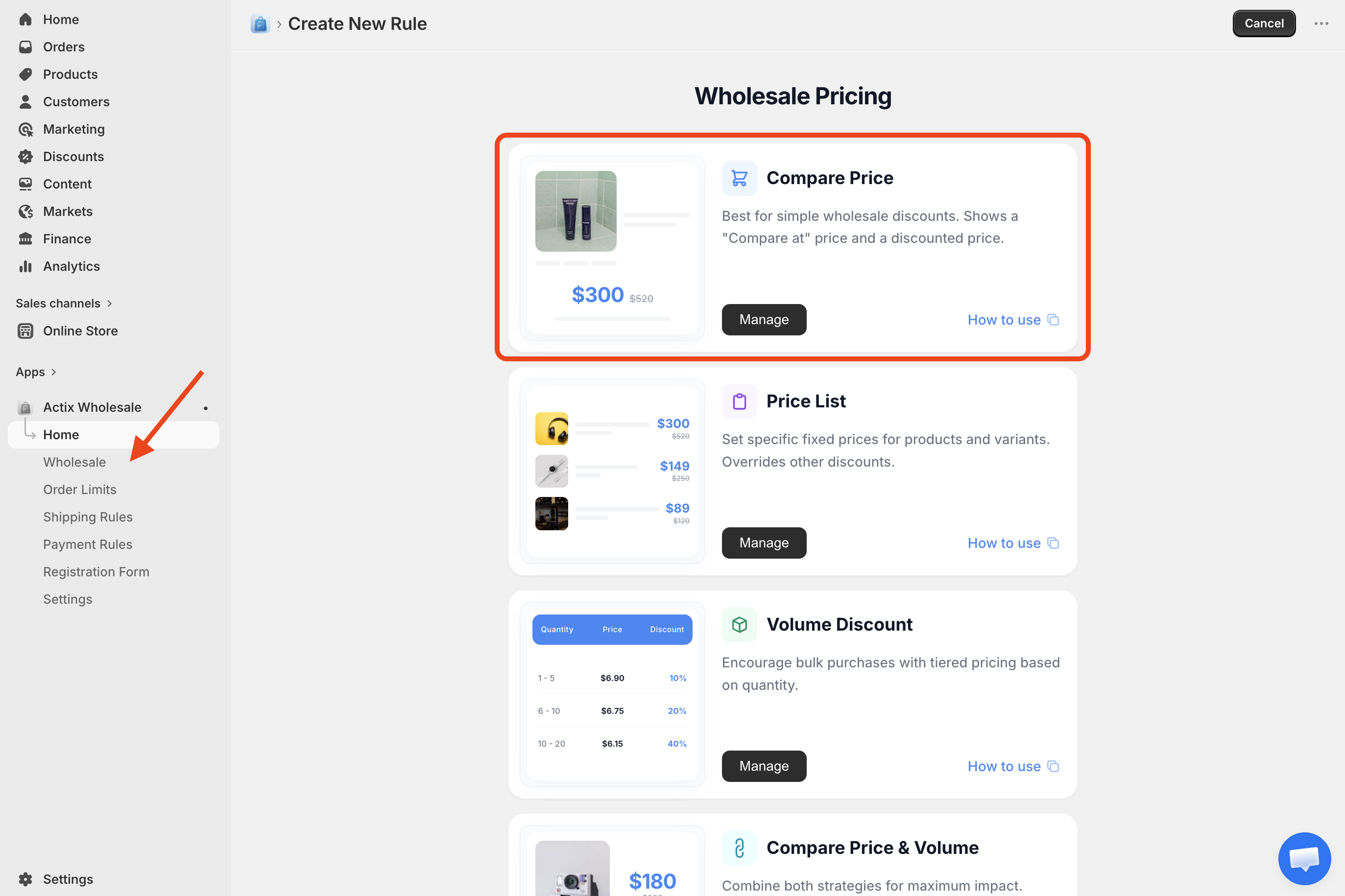
The Compare Price feature allows you to offer straightforward discounts on your products to specific customer groups. Instead of complex tier requirements, this feature lets you set a flat percentage off, a fixed amount off, or a strict new fixed price across the products you select.
This is ideal for setting up a standard "VIP 20% Off" tier, an "Employee Discount", or running a temporary site-wide sale without changing your base product prices in Shopify.
1. Accessing Compare Price
- Go to your Shopify Admin panel.
- Navigate to Apps > Actix Wholesale > Wholesale.
- From the app dashboard, click Create Rule and select Compare Price.
2. Field Reference
General Information
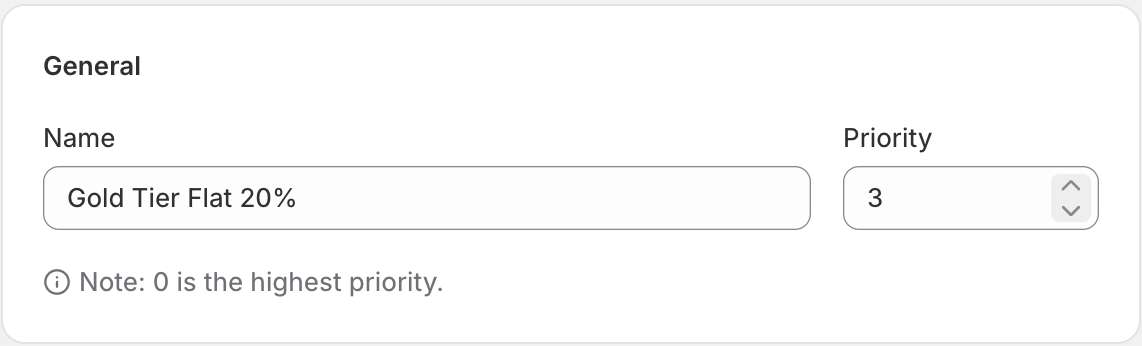
- Rule Name: A private name for the rule (e.g., "Gold Tier Flat 20%").
- Status:
- Active: The discount is live on your store.
- Draft: The discount is saved but not currently applying to anyone.
- Priority: If a customer qualifies for multiple rules, the rule with the lowest number (e.g.,
0) takes precedence.
Targeting Configuration
Define who gets the discount and what they get it on.
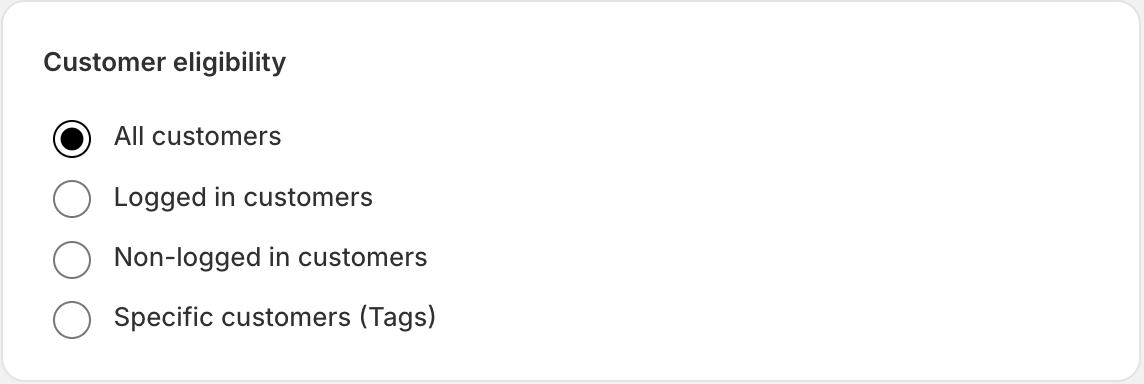
- Customer Targeting:
- All Customers: Applies to everyone browsing the store.
- Logged-in Customers: Applies only to users with an active account on your store.
- Specific Customers (Tags): Limits the discount to customers possessing specific Shopify tags (e.g.,
VIP,B2B,Wholesale).
- Exclude Tags: Useful if you target "All Customers" but want to exempt specific groups (e.g., exclude
BannedorEmployeetags from a public sale).
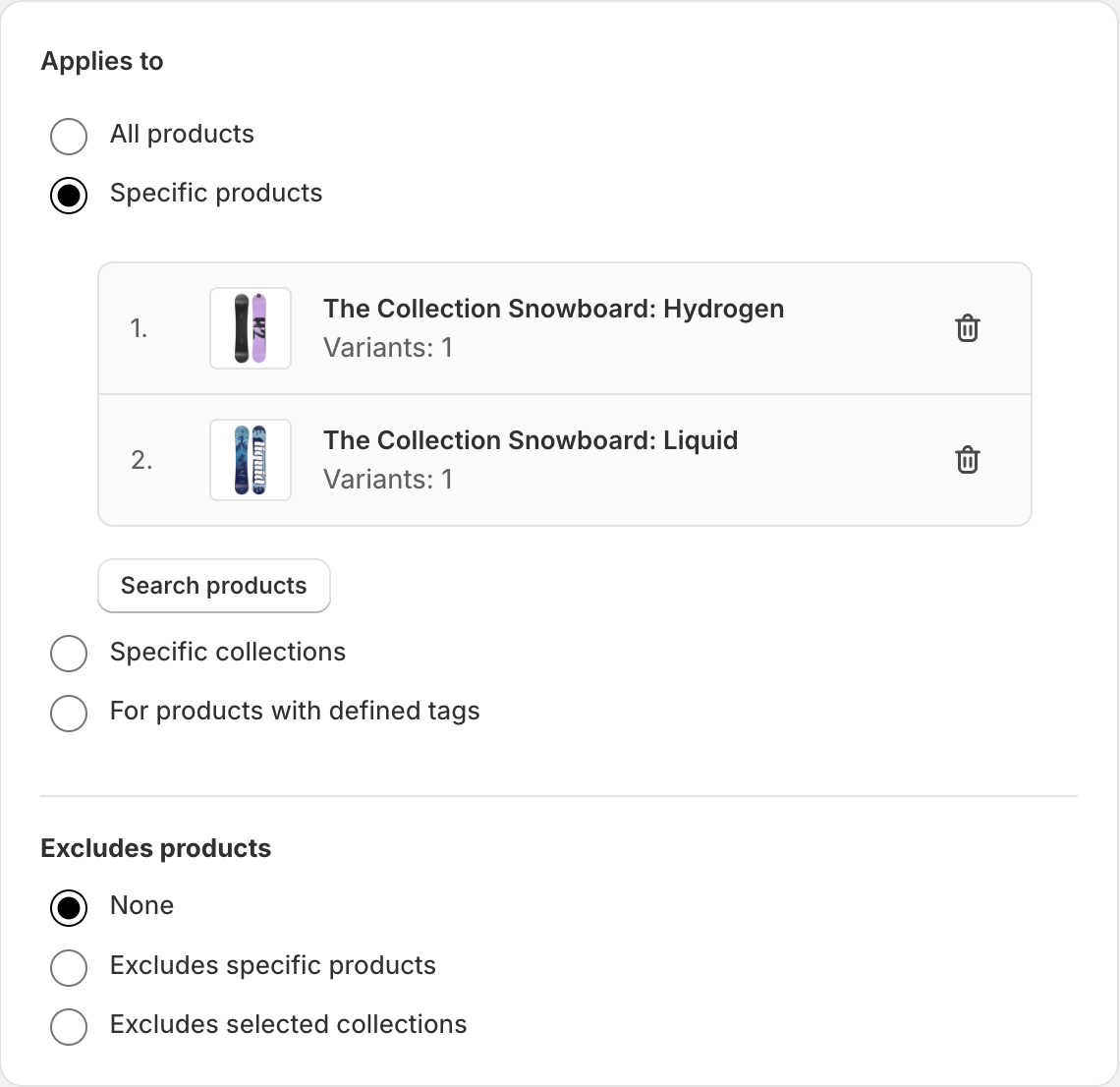
- Product Targeting:
- All Products: Applies the discount to every product in the store.
- Specific Products: Hand-select individual products.
- Specific Collections: Applies the discount to any product belonging to selected collections.
Discount Settings
This is where you define how much money the customer saves.
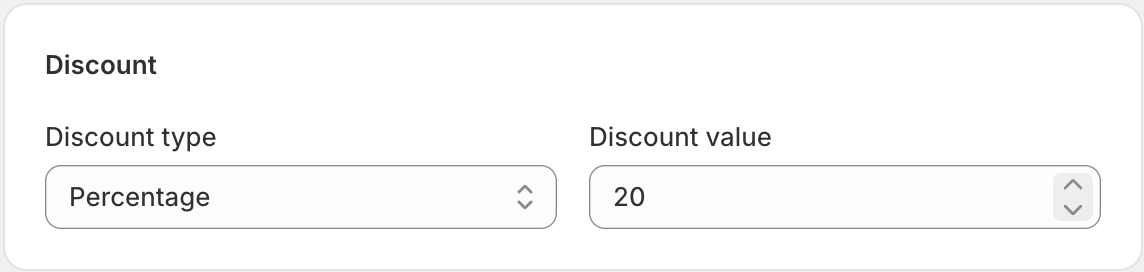
- Discount Type:
- Percentage: Takes a percentage off the original price (e.g., 20% off).
- Fixed Amount: Takes a specific dollar amount off the original price (e.g., $10 off).
- Fixed Price: Overrides the original price with a strict new price (e.g., the item costs exactly $50, regardless of retail price).
- Discount Value: The number associated with your discount type (e.g., enter
20for 20%).
Market Eligibility
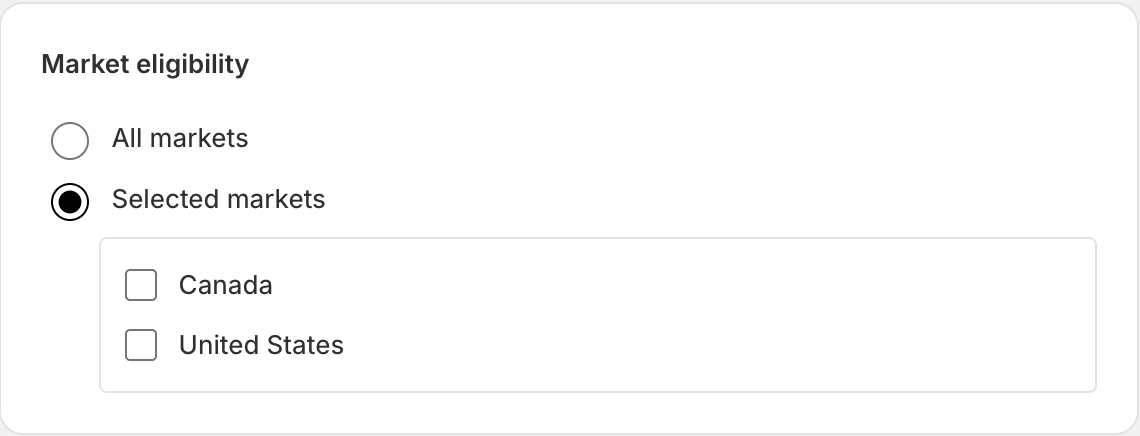
Define which markets this rule applies to.
- All Markets: The rule is active for all markets configured in your Shopify store.
- Specific Markets: Restrict the rule to specific markets. You can select from the list of your Shopify markets.
Active Dates
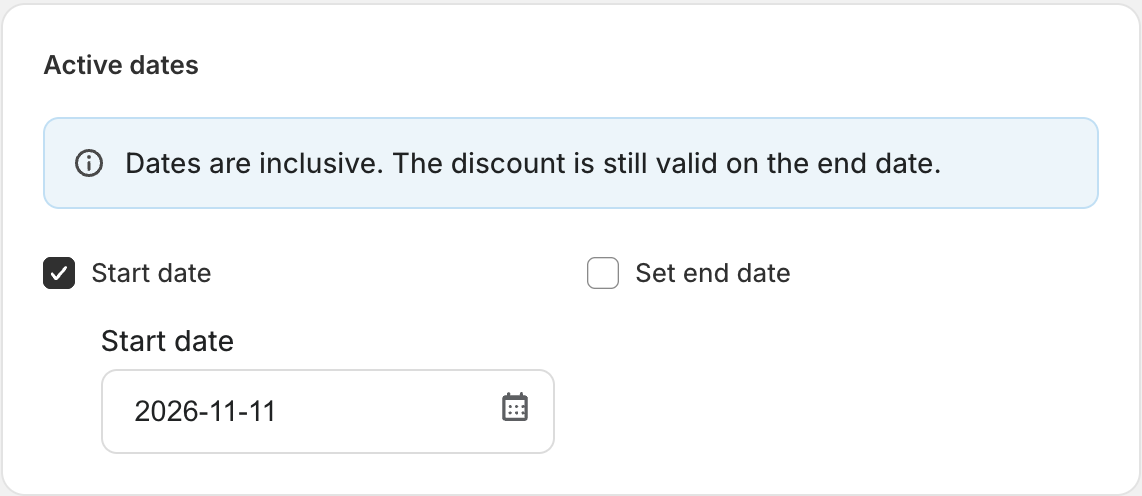
- Start Date & End Date: Leave these blank to let the rule run indefinitely. Or, set a start and end time to automate flash sales and holiday promotions.
Summary Card
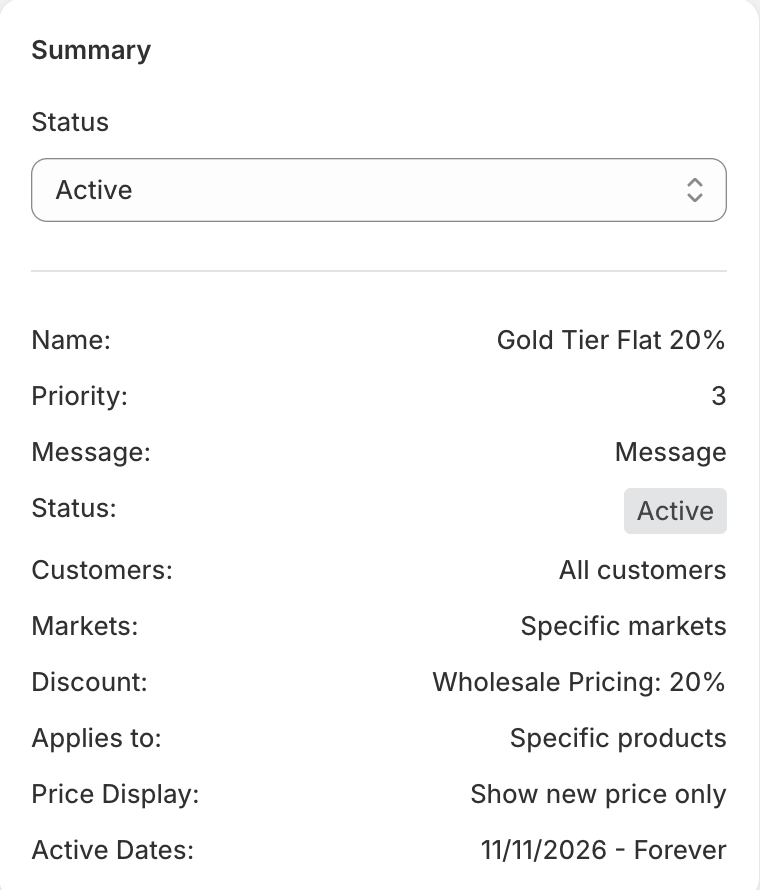
A sticky summary card is displayed on the side to give you a quick overview of the rule you are creating or editing.
- Quick Overview: Shows the name, priority, status, targeting, and discount value at a glance.
- Status Toggle: You can quickly toggle the status between Draft and Active directly from the summary card.
- Preview Table: For rules involving volume discounts, an example preview table is shown to visualize the tiers.
Important: Remember to set the status to Active when you are ready to publish the rule. If left as Draft, the rule will not be applied to your store.
3. Common Use Cases
Example A: Automatic B2B Discount (25% off)
- Discount Type: Percentage
- Value: 25
- Product Targeting: All Products
- Customer Targeting: Specific Customers (Tags) ->
B2B
Example B: Clearance Sale ($20 off specific collection)
- Discount Type: Fixed Amount
- Value: 20
- Product Targeting: Specific Collections ->
Clearance - Customer Targeting: All Customers
For support or questions, reach out to us at tech@actixlabs.com.